
Before you begin
SillyTavern Manager is an app that installs, runs and backs up SillyTavern for you. It is a separate project, not made by the SillyTavern team. The SillyTavern you use is always downloaded from their official GitHub page.
You will need: a machine you control, about 2 GB of free disk for SillyTavern and its dependencies, and an internet connection for the first install. Everything after that can run offline except the model providers SillyTavern talks to.
| Platform | What you need | Where to start |
|---|---|---|
| Windows 10 or 11 | Nothing. Node.js, npm and Git are inside the download. | Windows |
| Android 7+ (app) | Nothing. Install the app from the APK file. | Android app |
| Android 7+ (Termux) | Termux from F-Droid | Termux |
| macOS 13+ | Homebrew and Node.js 22+ | macOS |
| Linux or a VPS | Node.js 22+ and git | Linux |
| Any Docker host | Docker, and a volume for /data |
Docker |
| Anything with Node 22+ | npm 11+ | npm |
The manager and SillyTavern use three ports: 7860 for the panel, 8002 for SillyTavern and 8001 for the access gateway. If something else on the machine already holds one of them, see Troubleshooting.
Installing
Seven ways in, all ending at the same place: a panel asking you to choose an administrator password.
#Windows
- Press Download on the home page, or open the latest release and download
SillyTavernManager-windows-x64-vX.Y.Z-setup.exe. - Open the downloaded installer. If Windows SmartScreen warns about an unrecognized app, click More info and then Run anyway.
- Complete the installer. It installs into
%LOCALAPPDATA%\Programs\SillyTavernManagerwithout asking for administrator rights, and creates Start Menu and Desktop shortcuts. - Open SillyTavern Manager. The desktop app opens straight into the manager console.
Closing the window hides the app to the system tray so SillyTavern and your links keep running in the background, and desktop notifications alert you when a character finishes replying. Right-click the tray icon to open the manager, open SillyTavern, open your data folder, or press Stop & Quit to shut down SillyTavern and the Cloudflare tunnel cleanly.
To update, press Update on the banner in the manager console, or download the new installer and run it over the old one. Your data stays.
The application folder and the data folder are separate. Your data lives in %LOCALAPPDATA%\SillyTavernManager, so updating or reinstalling never touches profiles, backups or settings.
If SmartScreen warns about an unsigned application, that is expected: release builds are not code-signed. Check the .sha256 file against the installer if you want to be certain the download is the one the release published.
#Android: the app
The easiest way on a phone. One app holds the manager and everything SillyTavern needs; there is no Termux and no command to type. It runs on 64-bit Android phones from Android 7 on, which is nearly every phone sold since 2017.
- Open the home page on your phone and press Download for Android, or download
SillyTavernManager-android-arm64-v8a-vX.Y.Z.apkfrom the latest release. - Open the downloaded file. Android asks whether your browser may install apps: allow it, then press Install. The app is not on the Play Store, so Play Protect may call it unknown; choose Install anyway.
- Open ST Manager. The first start unpacks what the app carries and takes about a minute.
- On Android 13 and later, allow notifications when asked. The manager keeps running in the background with a notification that says so.
- Choose a password, pick a SillyTavern version and press Install. It downloads a few hundred megabytes and takes a few minutes; the screen can be off.
The manager keeps running when you leave the app or swipe it away, so SillyTavern stays open for your other devices. To stop everything, press Stop on its notification.
To update, download the new APK and install it over the old one. Your data stays.
Moving over from Termux
Ran SillyTavern in Termux before? The overview asks Used SillyTavern in Termux? on a fresh install; Move my data copies your chats, characters and settings into the app. Later, Move from Termux on the Data page does the same.
Android’s folder picker opens: open its menu, choose Termux, tap Use this folder, then Allow. The app reads the SillyTavern in it and restores it here. Termux is left exactly as it was, and what the app had before is kept as a backup named Before moving from Termux, so the move can be undone.
Chat bubbles
When a character replies while you are in another app, the app can show the reply as a chat bubble floating over it, the way a messenger does; tap it to answer right there. The overview offers it once (Get replies as chat bubbles?), and the bell at the top turns Chat bubbles and Message notifications from characters on or off at any time. Bubbles need Android 11 or later; on older phones replies are ordinary notifications.
Your data lives inside the app. Uninstalling the app deletes it, so connect cloud backups before you rely on it.
#Android: Termux
Prefer to run it from Termux? Install Termux from F-Droid or another trusted source. Do not use the old Play Store build: it is years out of date and its package manager no longer works.
Open Termux, paste these commands, and press Enter. The first two update Termux itself and take a minute or two; the last one downloads what the manager needs. This is done once.
pkg update -y
pkg upgrade -y
pkg install -y git nodejs-lts
git clone https://github.com/locmaymo/stm.git
cd stm
npm ci
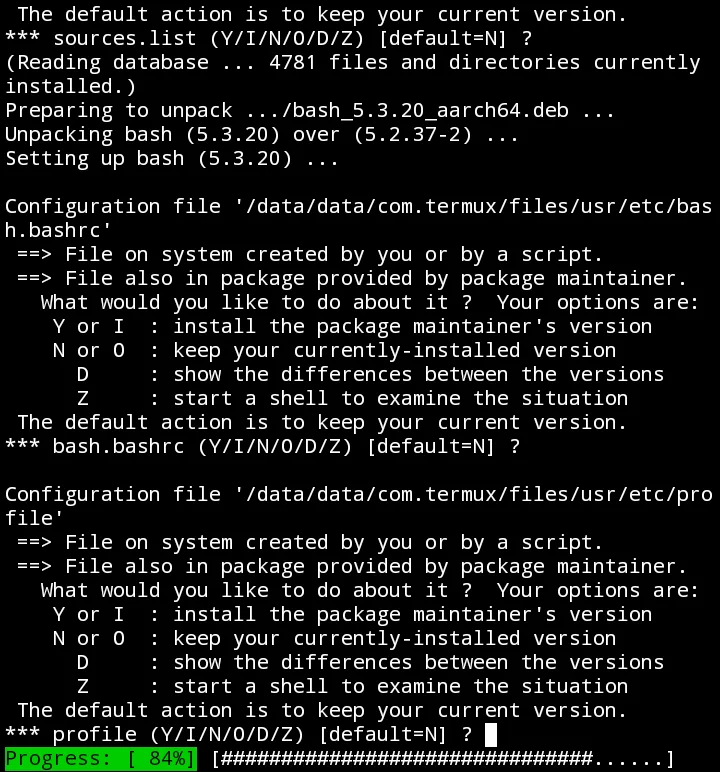
The first time Termux updates, it stops a few times and asks what to do with a settings file (sources.list, bash.bashrc, profile, openssl.cnf) with a line ending in (Y/I/N/O/D/Z) [default=N] ?.
Press Enter each time it asks. That takes the default, N: keep the file you already have. It is the safe answer, nothing is lost, and the update carries on. The question can come several times in a row; keep pressing Enter until the commands finish and the $ prompt is back.
Start the manager
Each time you want to use SillyTavern, open Termux and run:
cd stm
npm start
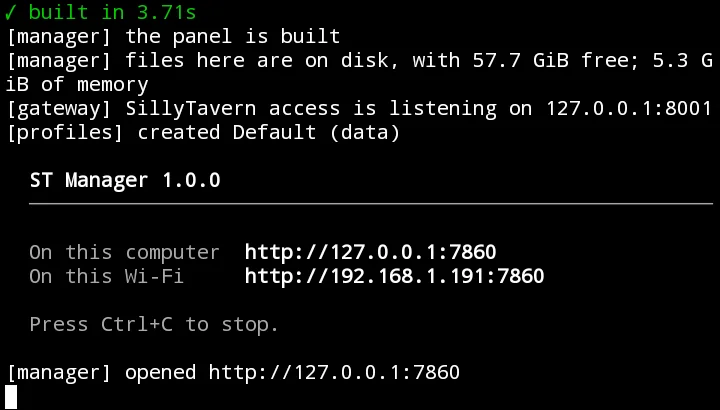
Termux always opens in its home folder, which is where stm was downloaded, so cd stm finds it. When the box with the addresses appears, open http://127.0.0.1:7860 in the phone’s browser. The second address is for other devices on the same Wi‑Fi.
Update the manager
Stop it with Ctrl+C first, then run:
cd stm
git pull
npm ci
npm start
Termux keeps your data at $PREFIX/var/sillytavern-manager, outside the repository, so git pull never touches it.
Turning the tunnel on needs nothing installed by hand. Android only starts position-independent executables and Cloudflare’s own builds are not, so the manager asks Termux for its build of cloudflared first and falls back to running Cloudflare’s under proot, installing whichever it needs.
#macOS: from source
macOS uses the same launcher as Linux. Paste this into Terminal; the first line installs Homebrew and can be skipped if you already have it.
/bin/bash -c "$(curl -fsSL https://raw.githubusercontent.com/Homebrew/install/HEAD/install.sh)"
brew install git node
git clone https://github.com/locmaymo/stm.git
cd stm
npm ci
node deploy/linux/launcher.mjs
Open http://127.0.0.1:7860. Stop with Ctrl+C, and start it again later with:
cd "$HOME/stm"
node deploy/linux/launcher.mjs
Data is kept under ~/.local/share/sillytavern-manager. Apple Silicon and Intel are both fine; nothing here needs Rosetta.
#Linux and VPS
With Node.js 22 or newer and git installed:
git clone https://github.com/locmaymo/stm.git
cd stm
npm ci
node deploy/linux/launcher.mjs
Data goes to $XDG_DATA_HOME/sillytavern-manager, or ~/.local/share/sillytavern-manager when that variable is unset.
To have it come back after a reboot, save this as /etc/systemd/system/sillytavern-manager@.service:
[Unit]
Description=SillyTavern Manager
After=network-online.target

[Service]
Type=simple
User=%i
WorkingDirectory=/home/%i/stm
ExecStart=/usr/bin/node deploy/linux/launcher.mjs
Restart=on-failure
RestartSec=5

[Install]
WantedBy=multi-user.targetsudo systemctl daemon-reload
sudo systemctl enable --now sillytavern-manager@$USER
systemctl status sillytavern-manager@$USERKeep port 7860 behind the firewall. The manager panel is the thing that can install, restore and delete; publish the access gateway or a tunnel instead, never the panel. Set STM_HOST=0.0.0.0 only when something else in front of it is doing the access control.
#Docker and hosted platforms
Build the image from the repository:
git clone https://github.com/locmaymo/stm.git
cd stm
docker build -f deploy/docker/Dockerfile -t sillytavern-manager .
Then run it with durable storage:
docker run --rm \
  -p 7860:7860 \
  -v sillytavern-manager-data:/data \
  -e STM_ADMIN_PASSWORD='choose-a-long-password' \
  sillytavern-manager
The manager is at http://127.0.0.1:7860. SillyTavern stays on the container’s internal port 8002, and a tunnel points only at the access gateway on 8001.
On a hosted container platform: expose 7860, mount durable storage at /data, and supply STM_ADMIN_PASSWORD through the platform’s secret settings.
Never put the administrator password in a Dockerfile or commit it to git. STM_ADMIN_PASSWORD is read once, at the first start, to create the password without a browser.
#npm
On any machine with Node.js 22 or newer:
npx sillytavern-managerOr install it once and keep it:
npm install --global sillytavern-manager
sillytavern-manager
On Windows prefer the portable ZIP, which already contains Node.js. The npm package and a source checkout use the same ports and the same data directory.
The first run
- Open
http://127.0.0.1:7860. The first screen asks you to create the manager administrator password. Choose something long; this password is what opens the panel that can install, restore and delete. - Read the terms (the line beside the tick opens them), then accept and finish setup.
- Choose a SillyTavern version.
latestis selected by default and is the right answer unless you have a reason to pin one. - Press Install and wait for Ready. It clones the repository, installs dependencies and then health-checks the result; Ready means SillyTavern actually answered on port
8002, not that the files finished copying. - Open the local link, or set a SillyTavern passcode first and then turn on local-network access or a tunnel.
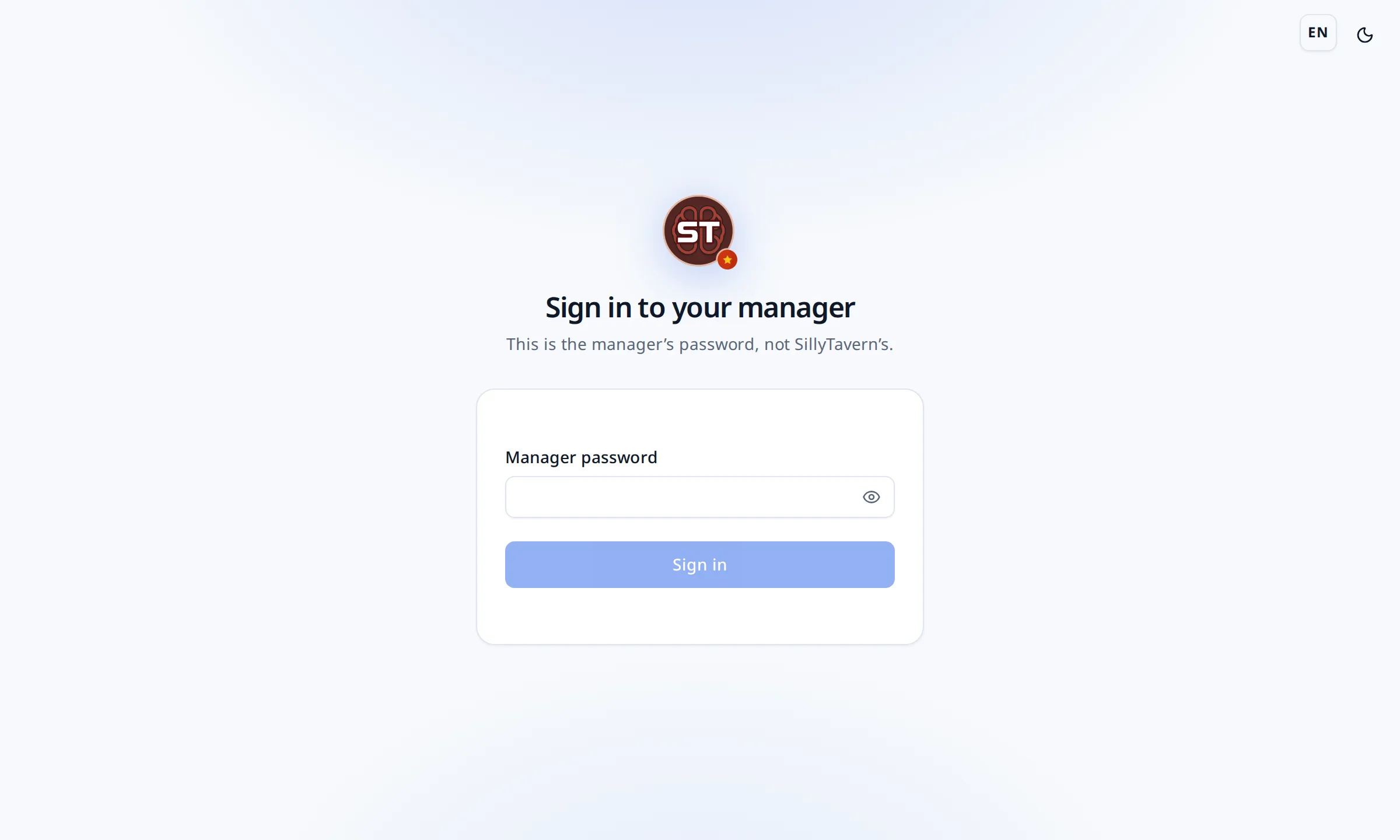
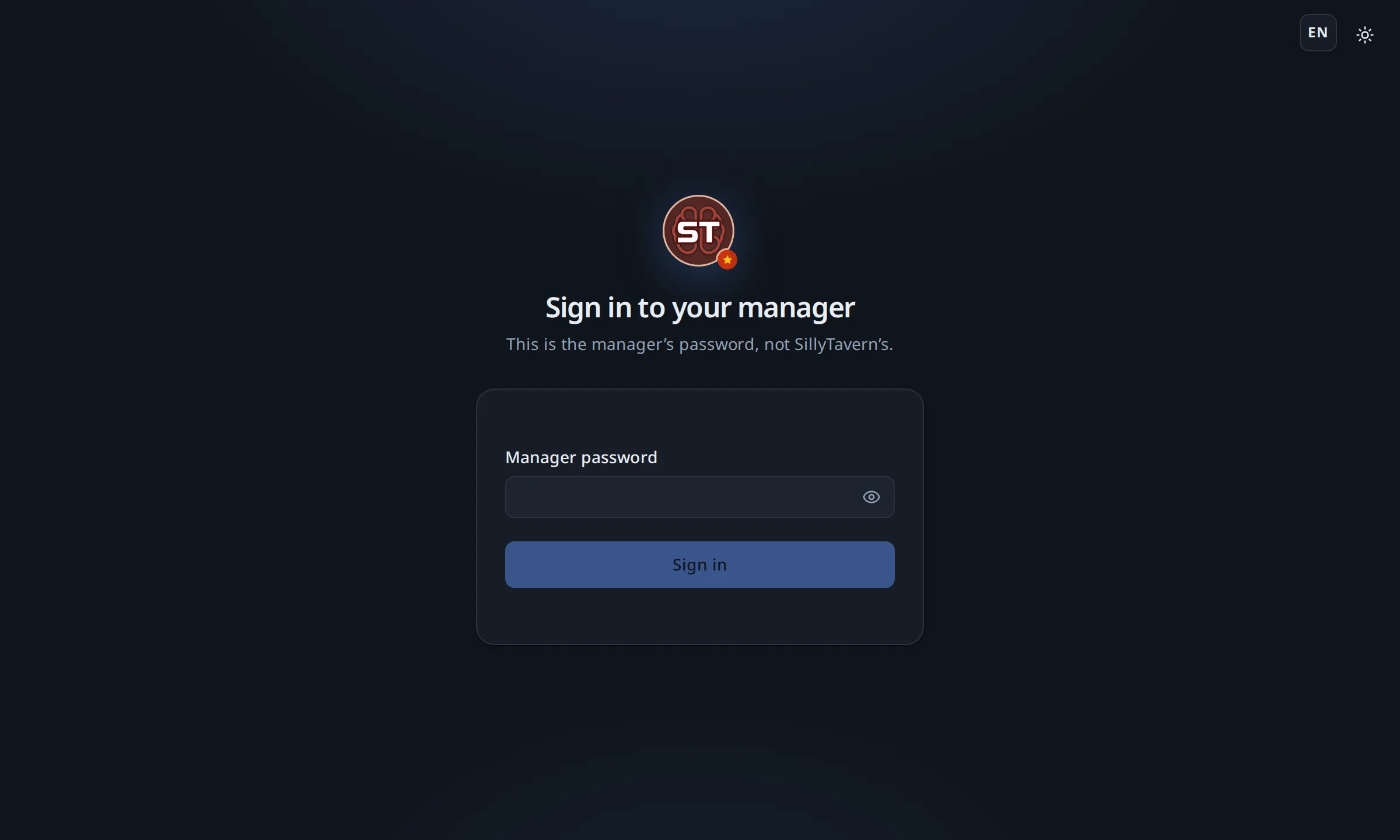
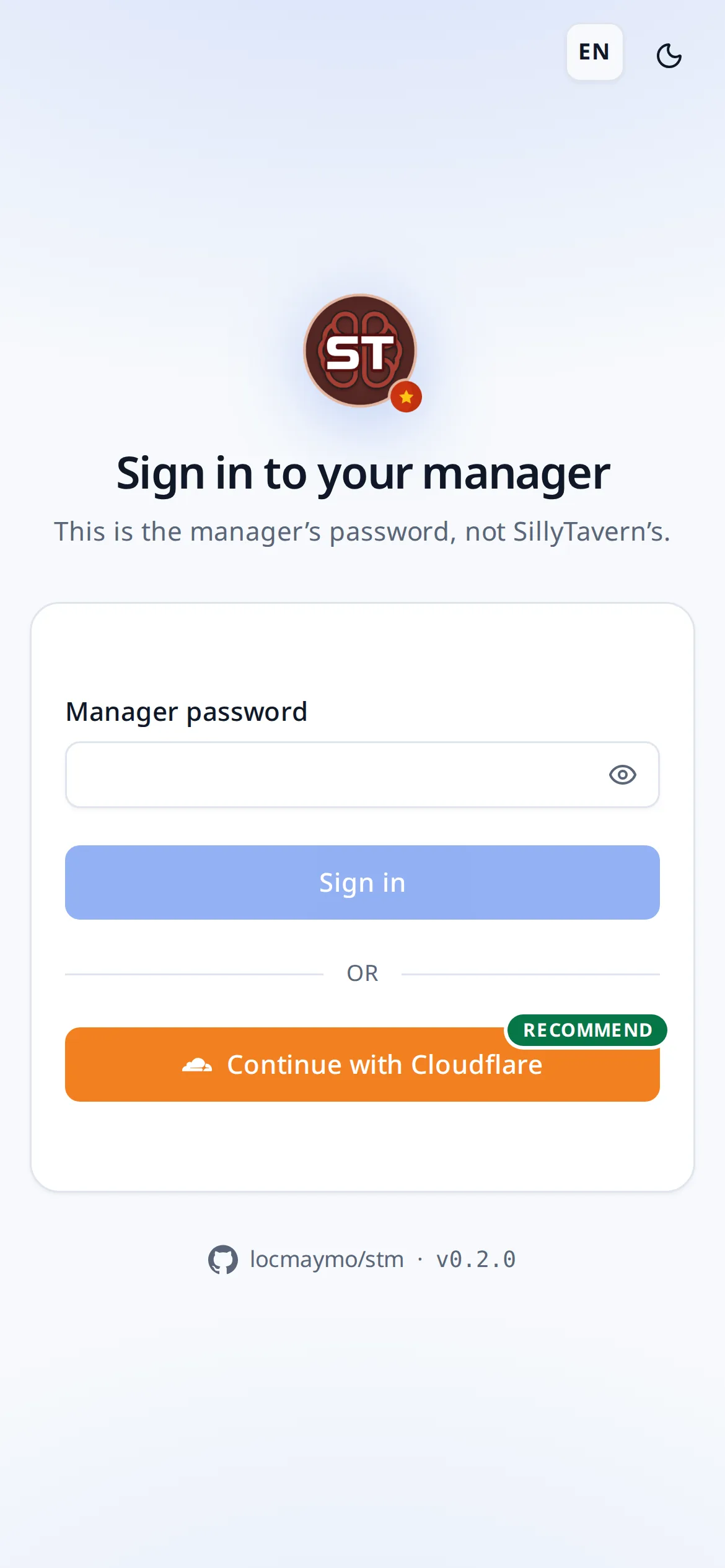
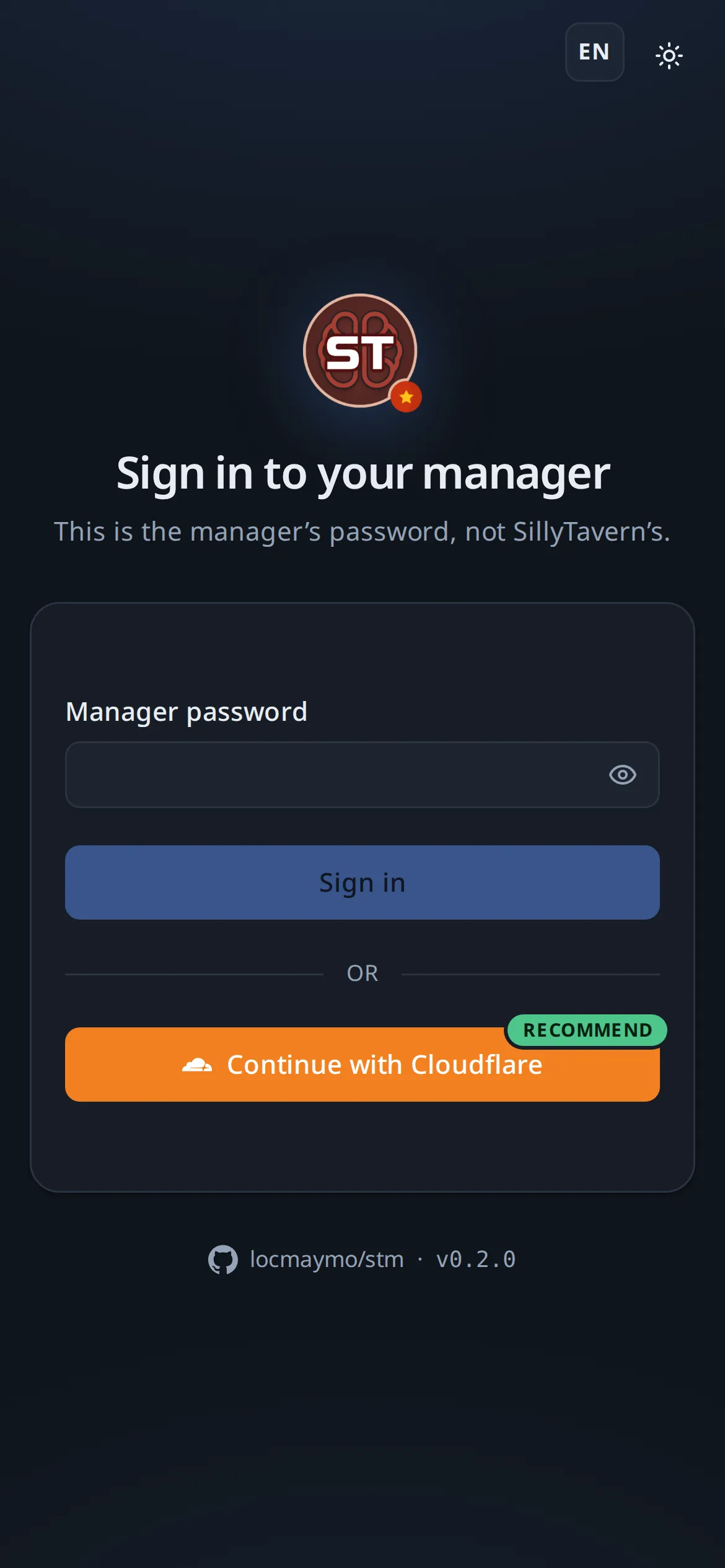
The manager password and the SillyTavern passcode are two different things. The manager password opens the admin panel. The passcode opens SillyTavern to other devices, and changing it signs out every device already in.
Beside the password, Continue with Cloudflare sets the manager up and connects backups to an R2 bucket in your own account in one step; afterwards that Cloudflare account opens the manager as well as the password does. Continue with Google Drive, below it, does the same with your Google Drive. If the account already holds the backups and settings of one of your machines, they come back here. See Bringing a machine back.
Only the owner’s account gets in. On a manager nobody has set up, the first account to sign in becomes its owner. On one with a password, only the account its owner connected from the console is let in; anyone else is turned away before anything of theirs is kept.
Until everything is in place, a Setup checklist on the overview lists the six steps worth taking: install SillyTavern, connect Cloudflare, set the STM password and the SillyTavern PIN, turn on R2 backups and open SillyTavern’s link. It ticks each one off as it happens. It folds itself away once all six are done.
A first install downloads a few hundred megabytes of dependencies and takes a few minutes on a laptop, longer on a phone. The live log says what it is doing; nothing is stuck just because it is quiet for thirty seconds during npm ci.
Running it day to day
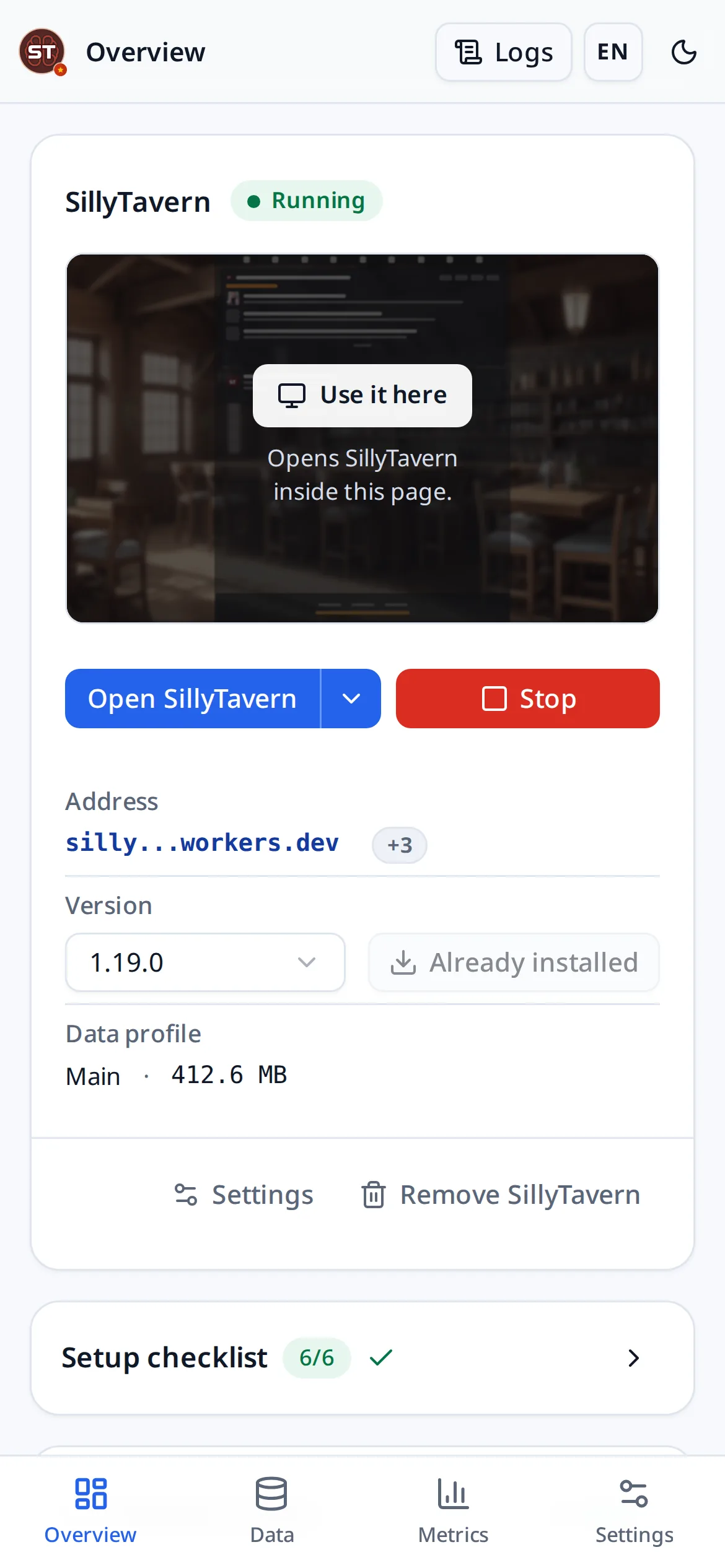
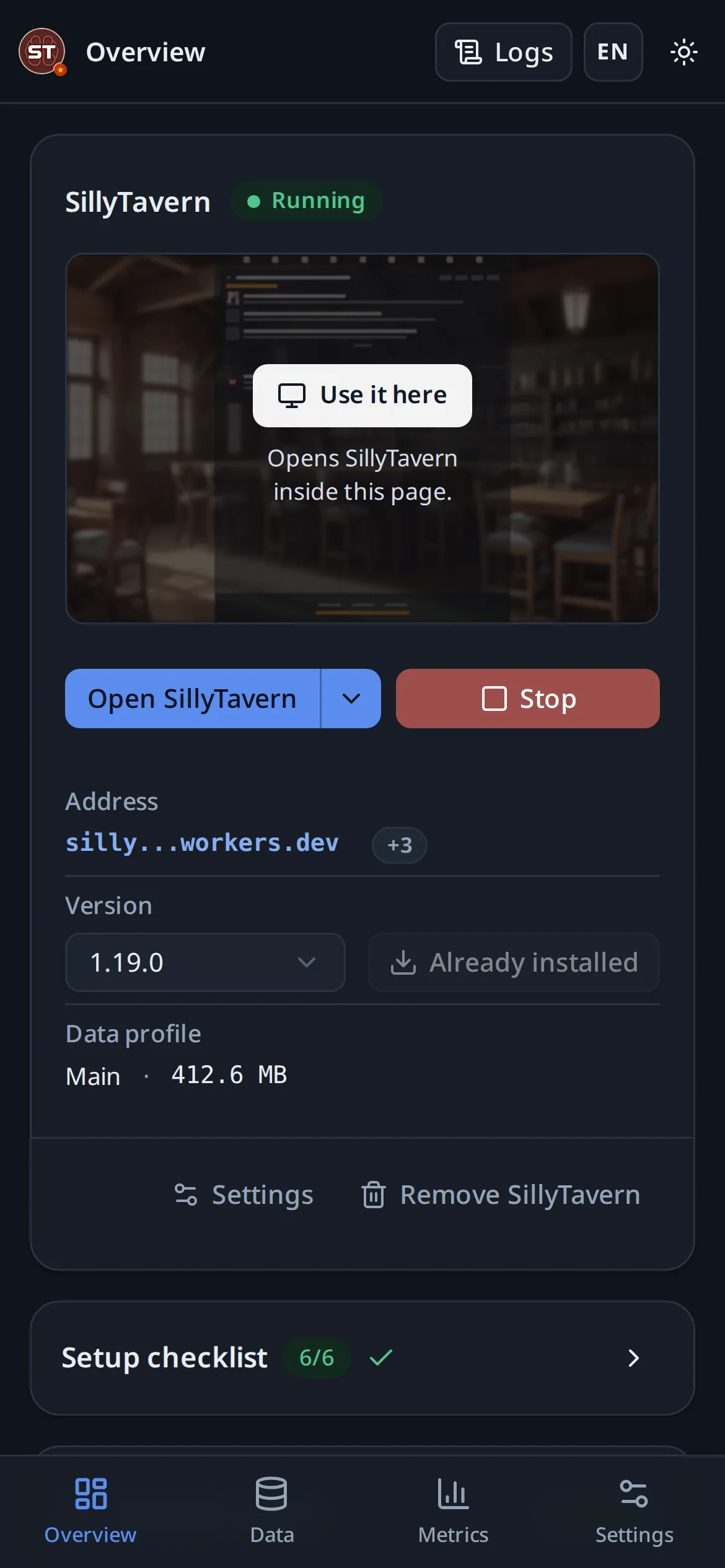
The overview page is the whole of normal use: Start, Stop, and a link that opens SillyTavern. It also shows the installed version, whether a newer release exists, how much space your data takes and what the machine is doing.
Use it here, on the preview, opens SillyTavern inside the manager’s own page, already signed in. The manager password is the stronger of the two, so the PIN is not asked for. The bar above it can minimize it back to the console while it stays loaded, give it the full screen, back up on this machine or to the cloud, show the logs, reload it or move it to a tab; Close unloads it and gives its memory back. The arrow beside Open SillyTavern offers Open with tools: a new tab with the same bar and a floating tools button. From another device, where a page cannot be put inside the console, the same buttons open SillyTavern in a tab instead.
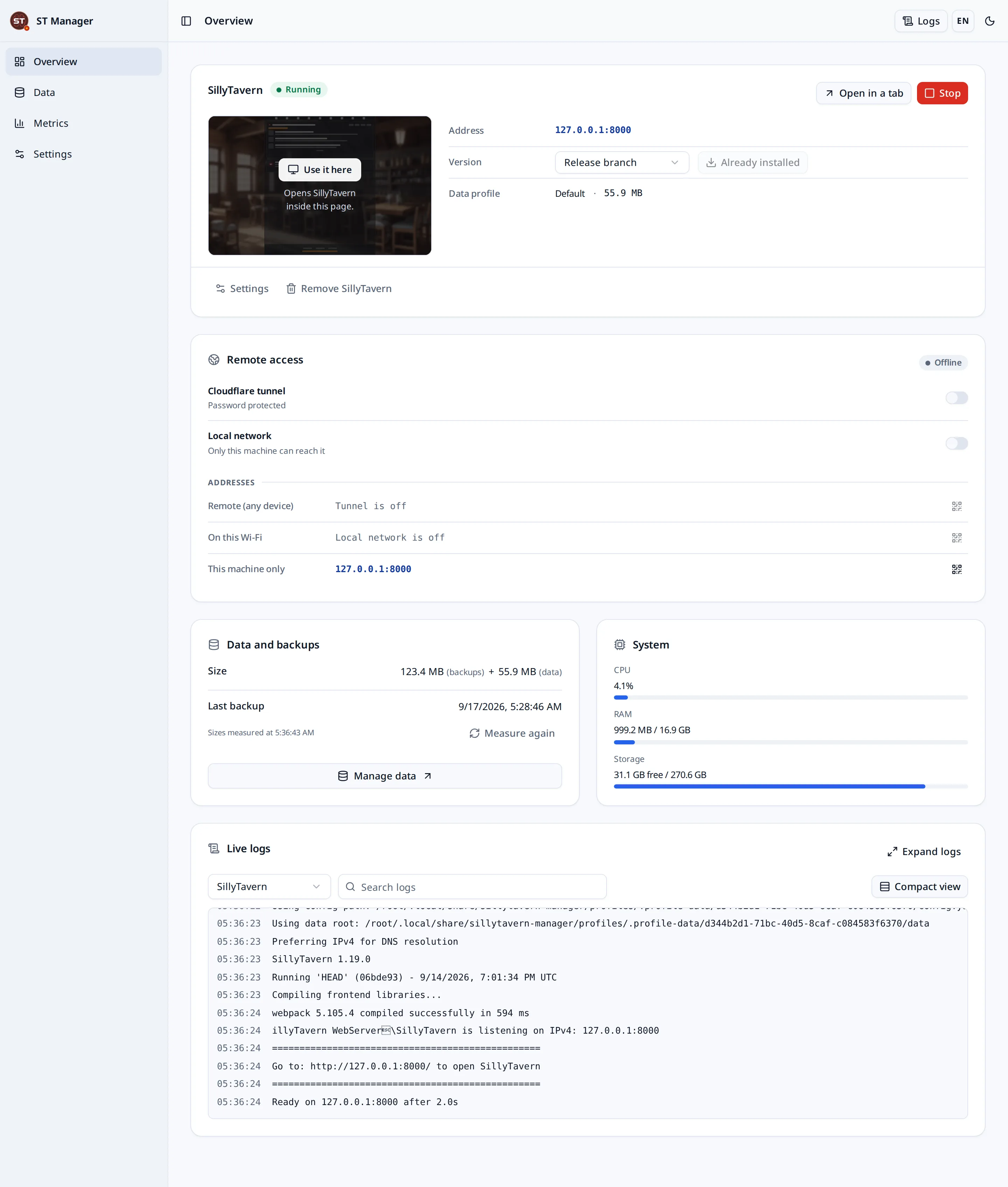
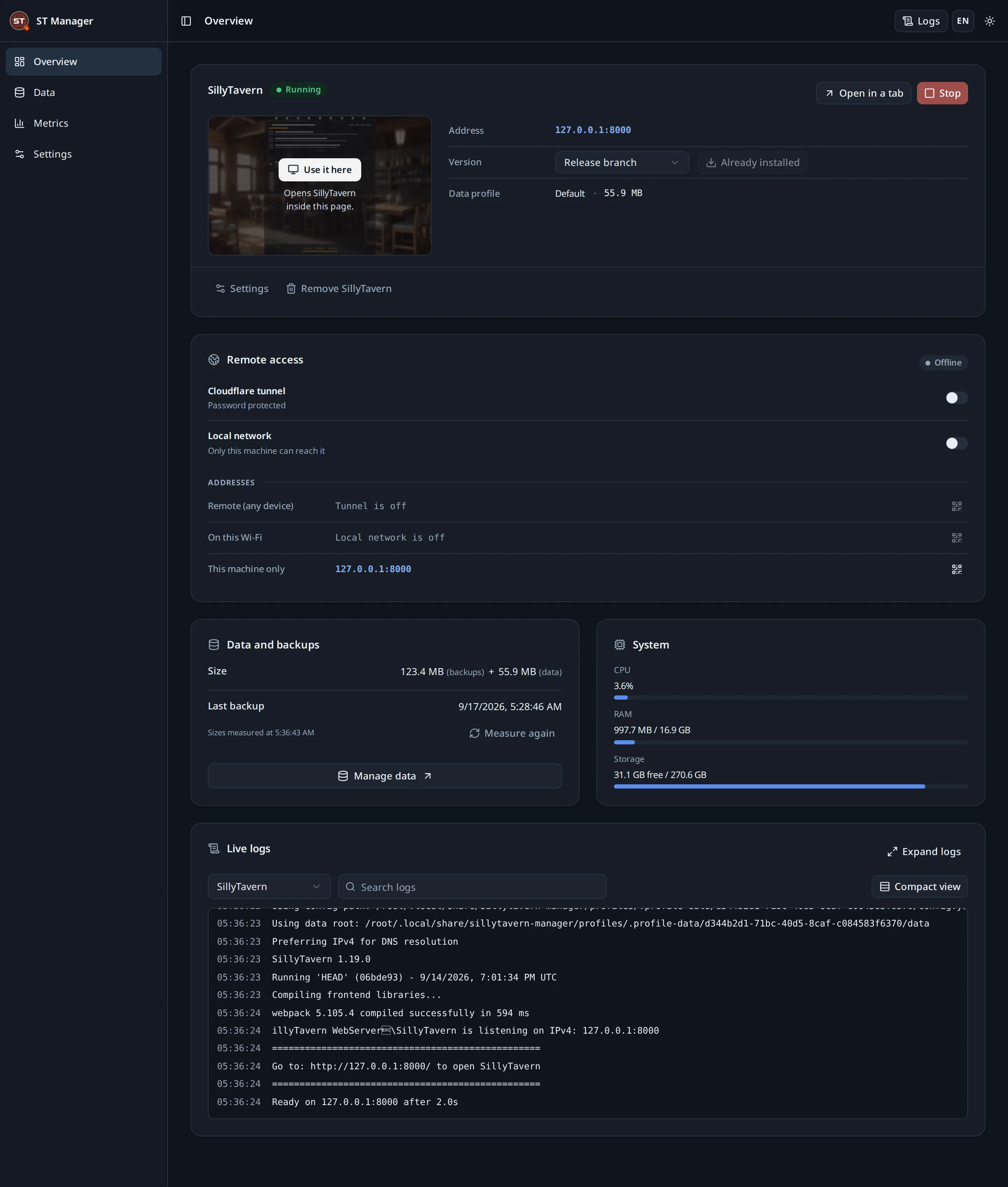
The log feed carries five sources in one searchable list: the manager, SillyTavern, the installer, backups and the tunnel. When something fails, the reason is in there, and the panel translates the manager’s own lines into your language while leaving SillyTavern’s, npm’s and git’s output exactly as those programs wrote it.
Closing the browser does not stop anything. The manager keeps running until you stop it in its own window, or stop the service.
Backups and restores
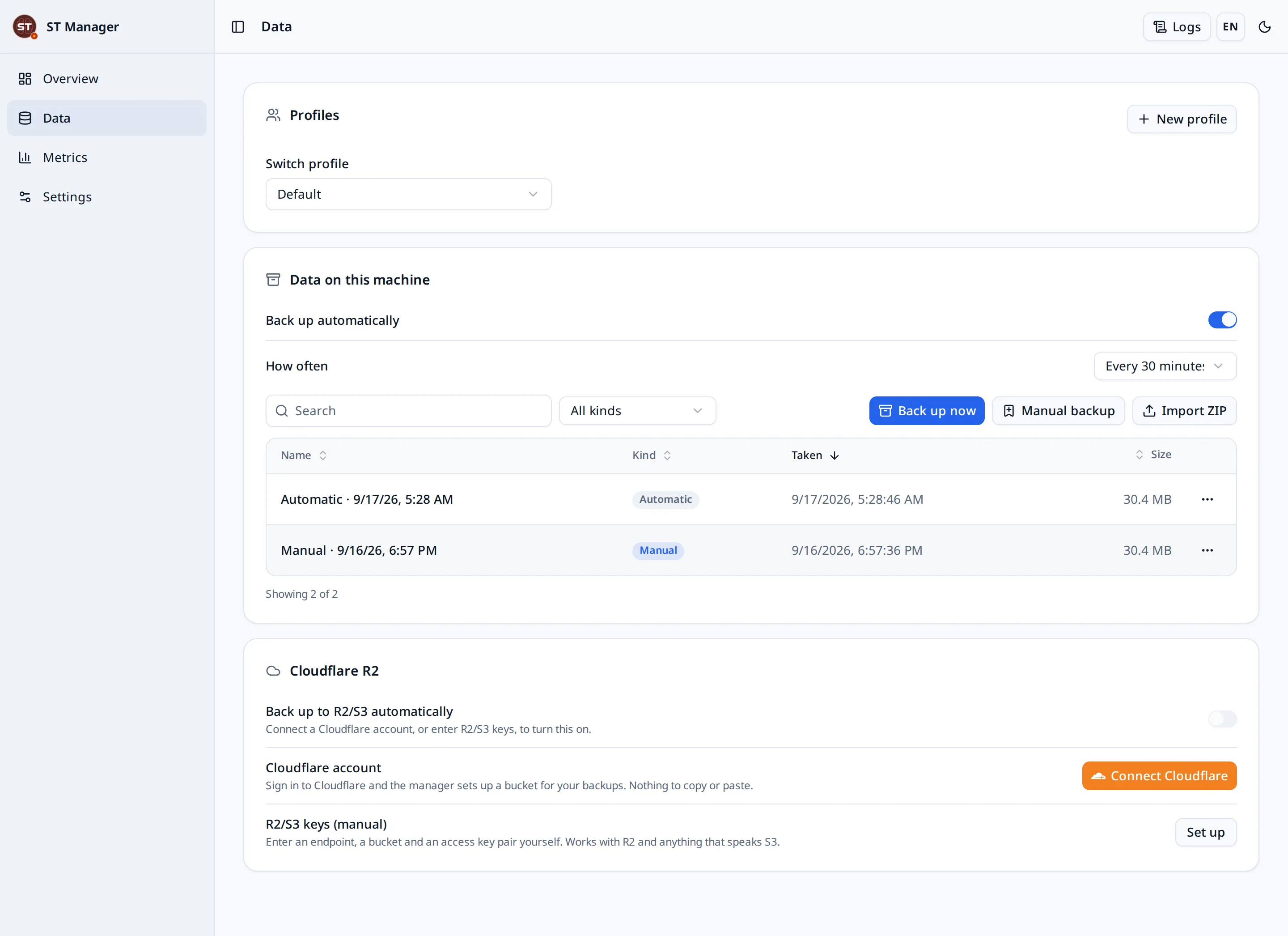
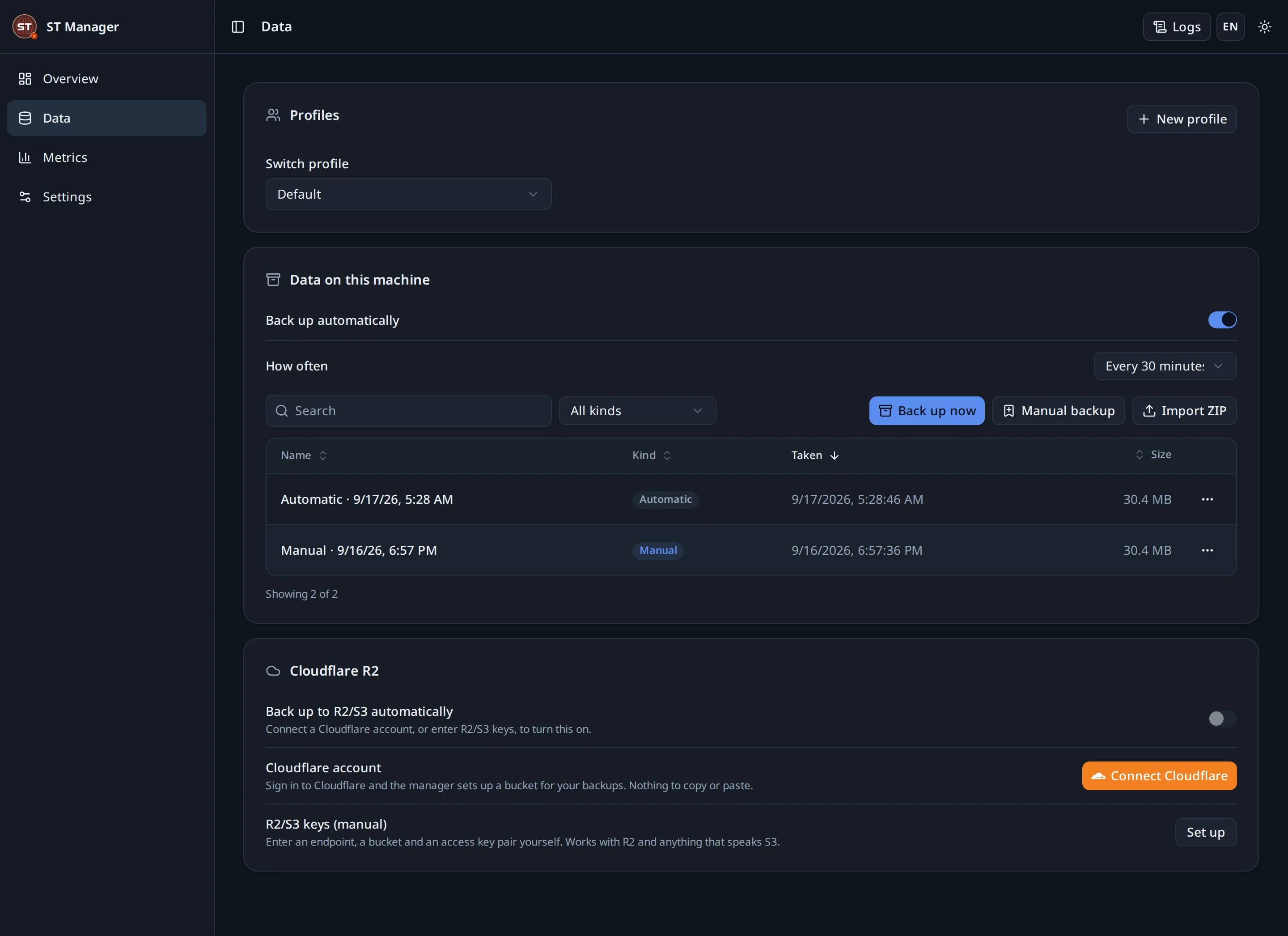
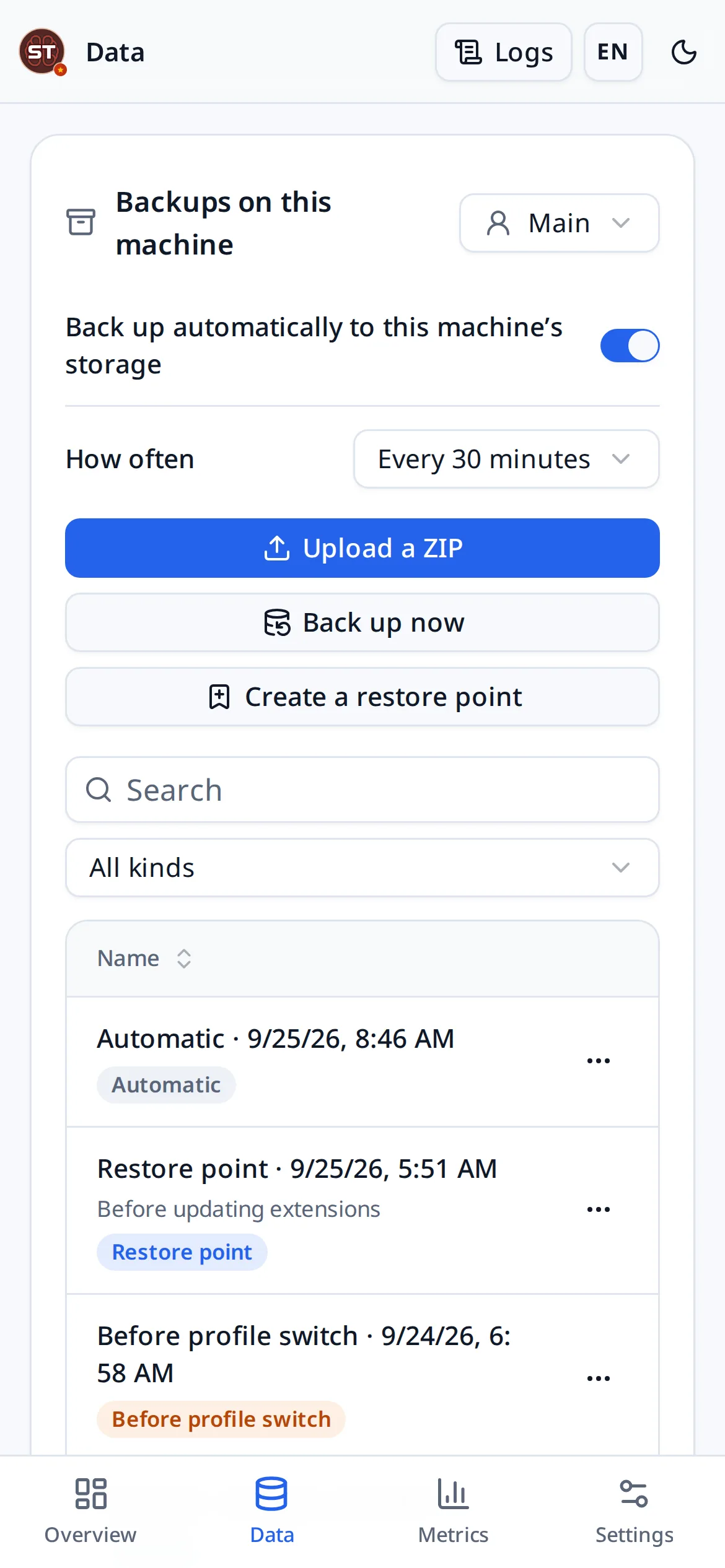
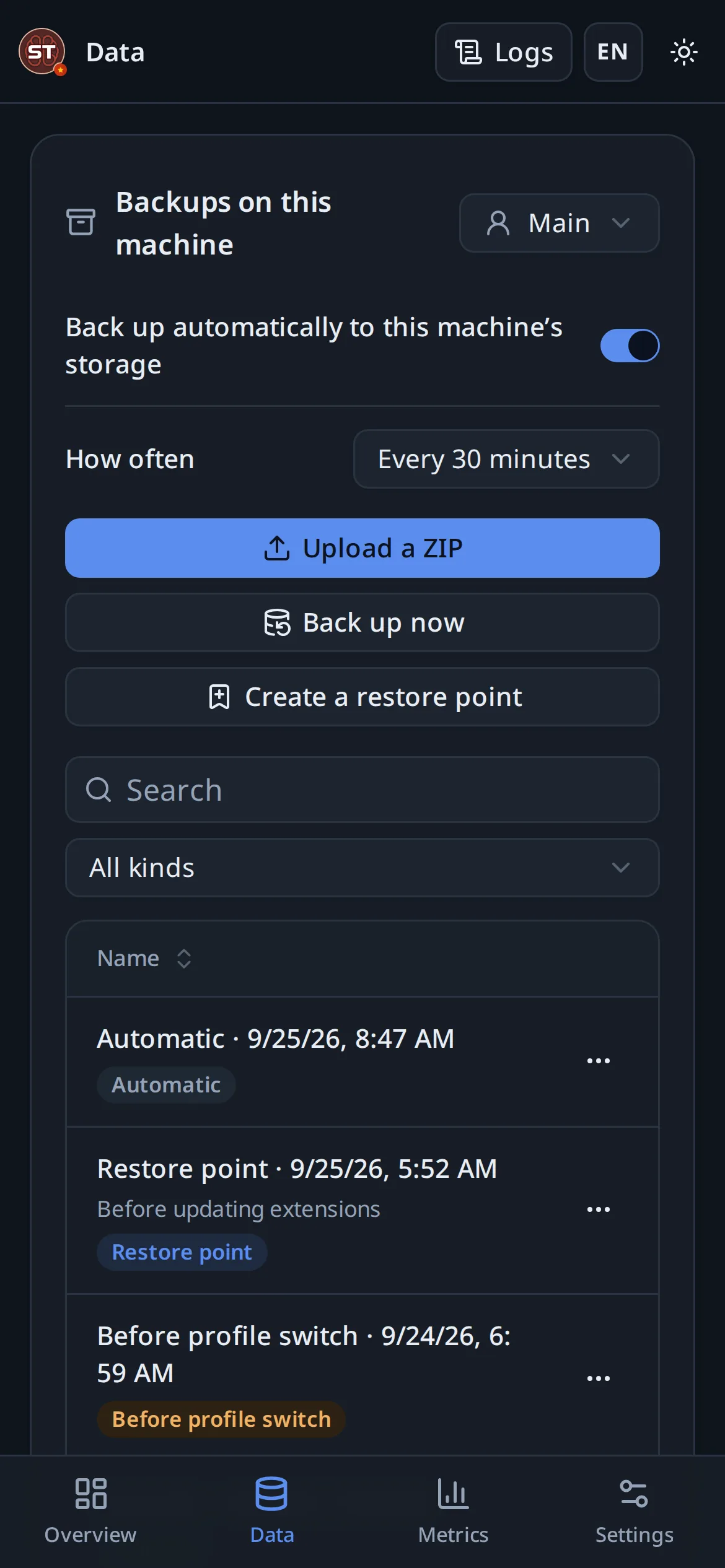
The Data page holds profiles, local archives and, if you connect one, off-site recovery points in your own Google Drive or Cloudflare account.
#Local archives
Back up now writes a ZIP that SillyTavern’s own import understands. By default it leaves out secrets.json, thumbnails, vectors, generated backups, .git, node_modules and operating-system clutter, which is why an archive is far smaller than the data folder. Including secrets is a separate, deliberate choice with a warning attached.
The schedule takes one every 30 minutes, hour, six hours or day when the data has changed, and keeps the newest (STM_LOCAL_BACKUPS keeps more). Create a restore point takes one on purpose, with a note of your own, and the manager never deletes a restore point, an upload or a recovery point brought back from R2 by itself; the safety copy taken before a restore or a profile switch is kept as the undo for the last one. Archives are ordinary files: copy them anywhere.
#Restoring
- Pick an archive: one the manager made, a recovery point from Google Drive or Cloudflare R2, or a ZIP you upload.
- Read the preview. It lists what is in the archive before anything is written, and for a replace, which files in the profile the archive does not have.
- Choose Replace (the default: the profile becomes the archive) or Merge (files in the archive overwrite their counterparts, everything else is left).
- Confirm. A safety snapshot of the current state is taken first, automatically.
Restoring replaces data. The safety snapshot means a mistake is recoverable, but choosing the right archive is still yours to get right.
#Google Drive
On the Data page, choose Google Drive and press Connect Google Drive. Sign in with your Google account and allow access, and the manager keeps its recovery points in a hidden app folder in your own Drive. No card, no keys, nothing to create first.
The access asked for is Google’s narrowest one for Drive: a folder that belongs to this app alone. The manager cannot see anything else in your Drive, and the backup files do not show up among your own files, so they cannot be moved or deleted there by accident. Google’s consent screen calls this “its own configuration data”.
A new machine that connects the same Google account finds the same folder, so the recovery points already in it can be restored onto it. Connecting on a second machine makes that one the machine that backs up, and the first one stops.
Disconnect revokes the sign-in. The backups stay in your Drive unless you tick Also delete the backups from Google Drive in the same dialog. You can also remove access yourself at myaccount.google.com/permissions.
To empty the hidden folder without the manager, for example after uninstalling it: open Google Drive in a browser, then Settings → Manage apps → SillyTavern Manager → Options → Delete hidden app data.
Only the refresh token is stored, in a file readable by your user alone. Because Google asks for the app’s secret at every sign-in and refresh, those two requests go through a small service on this site that adds it; it keeps nothing and logs no token. Backups themselves go from your machine to your Drive; no server of this project is on that path.
The space is your Google account’s, shared with Gmail and Google Photos (15 GB on a free account). The panel shows how much the backups take and how much of the account is used. Small files are sent packed together, so a first backup of a typical profile takes a few minutes; after that only what changed is sent.
#Cloudflare R2
On the Data page, Connect Cloudflare is the whole of the setup. Sign in, choose the account, allow the permissions, and the manager finds or creates a bucket named sillytavern-manager-backup in your account and starts keeping recovery points in it. There are no keys to create or paste.
Two of the permissions are optional and worth allowing:
- Workers. The manager deploys a small Worker, also called
sillytavern-manager-backup, that carries backup data to the bucket. It is much faster and does not spend your Cloudflare API rate limit. Without it, backups go through Cloudflare’s API and a first one can take a long time. - Account Analytics. The panel can then show storage and Class A/B operations as Cloudflare counts them, for the bucket and for the account against the free tier. These are usage figures, not your bill.
A new machine that signs in to the same account finds the same bucket, so the recovery points already in it can be restored onto it.
Disconnect removes this installation’s Worker key and revokes the sign-in. The bucket and everything in it stay yours. You can also revoke access yourself in your Cloudflare profile, under Manage OAuth authorizations.
Only the refresh token is stored, in a file readable by your user alone. Access tokens and Worker keys are short-lived and live in memory. Backups go from your machine to your bucket; no server of this project is on that path.
R2 has a free tier, and beyond it Cloudflare bills you. Large or frequent backups cost storage and operations. Set your own limits and alerts in the Cloudflare dashboard. The charge is yours, whatever caused it.
Prefer not to sign in? Choose R2/S3 keys (manual) and enter the endpoint, bucket and key pair from the R2 page of the Cloudflare dashboard. Any S3-compatible storage works the same way.
#Saver mode
On a machine with little room for files, such as a container that keeps everything in memory or a phone that is nearly full, the archives on the machine are what runs it out. With Saver mode on, no archive is kept on the machine and the profile is on the disk once. Your R2 bucket holds the recovery points and stands in for the safety copy: the current data is sent to R2 before a restore replaces it.
An uploaded ZIP and a recovery point from R2 are written straight into the profile as they arrive, with SillyTavern stopped. The restore is checked against the room there is before it starts; when room is short, the manager offers to leave out what SillyTavern can do without (extensions’ git history and node_modules, SillyTavern’s own backups, thumbnails) and refuses one that still will not fit rather than failing halfway.
It turns itself on when the data directory is kept in memory, or when the disk has less than 5 GiB free as the manager starts, and says which. Otherwise it is a switch under Settings → When the manager opens, or STM_SAVER=1 / STM_SAVER=0 in the environment to settle it for good.
Connect R2 before relying on saver mode. With it on and no bucket, nothing holds your data but the profile itself.
#Bringing a machine back
The bucket also keeps how the manager was set up, beside the data: the manager password and the SillyTavern PIN as the hashes it stores, the ports, the links, Keep STM online, the backup schedules and R2 limits, and the SillyTavern release that was running. The usage figures go there too.
On a new machine, sign in with the same Cloudflare or Google account, on the first-run screen or on the Data page. A profile that is empty while the bucket is not gets the newest recovery point back before SillyTavern starts, and SillyTavern is installed at the release you were running. When the account holds the setup of another of your machines, a card on every page offers Restore everything in one go; SillyTavern is stopped while it runs, and what was on this machine is kept under Backups first.
One account backs up from one machine at a time. Signing in on a second machine makes it the one that backs up; the first stops, gives up its own sign-in and says which machine took over. Signing in there again takes it back.
Nothing is applied behind your back. A machine that is already set up is only offered the settings, with the name of the machine that wrote them and when, and restoring a password asks you to sign in again.
Data profiles
A profile is a complete, separate SillyTavern data set: its own characters, chats, settings and backups. Switching profiles swaps what SillyTavern sees.
They are useful for keeping work and play apart, for trying an extension without risking a real data set, and for a second person on the same machine. Creating one is instant; switching takes a safety snapshot first.
Notifications
The bell at the top of the console lists what happened while you were away: SillyTavern stopping unexpectedly, a backup finishing or failing, a new version of SillyTavern or of the manager, a link that dropped, space running out, and news from the project.
To get them on your phone or computer even with the console closed, open the bell and switch on Notifications on this device. This needs the console’s https link: its own link, or the fixed Cloudflare address. On iPhone and iPad, first add the console to the Home Screen from Safari’s Share menu, then switch it on from there.
When a character replies
SillyTavern opened through its link can tell you when a reply is ready, so you can send a message, switch to another app or lock the screen, and come back when it has arrived. The first time, SillyTavern asks Get a notification when a character replies?; press Turn on, then allow it. Later, Reply notifications in SillyTavern’s extensions menu (the wand beside the message box) turns it on or off for that device.
A notification names the character and shows the first words of the reply. Switch off Show what they said on a device other people can see, and it only says who replied. A reply that stopped halfway or failed says so instead.
It needs SillyTavern’s https link, ideally the fixed one, which does not change. On iPhone and iPad, add SillyTavern to the Home Screen from Safari’s Share menu and open it from there first. SillyTavern opened at 127.0.0.1:8002 directly, without the manager’s link, cannot send them.
The Android and Windows desktop apps show all of these as native notifications by itself (with character avatars on Windows, and chat bubbles on Android). Allow notifications when the app asks.
Usage figures
The Usage page counts requests, tokens, cache hits and latency, broken down by day, provider and model. The numbers come from SillyTavern’s own traffic as it passes through the manager, so they cover every provider without any of them being configured here.
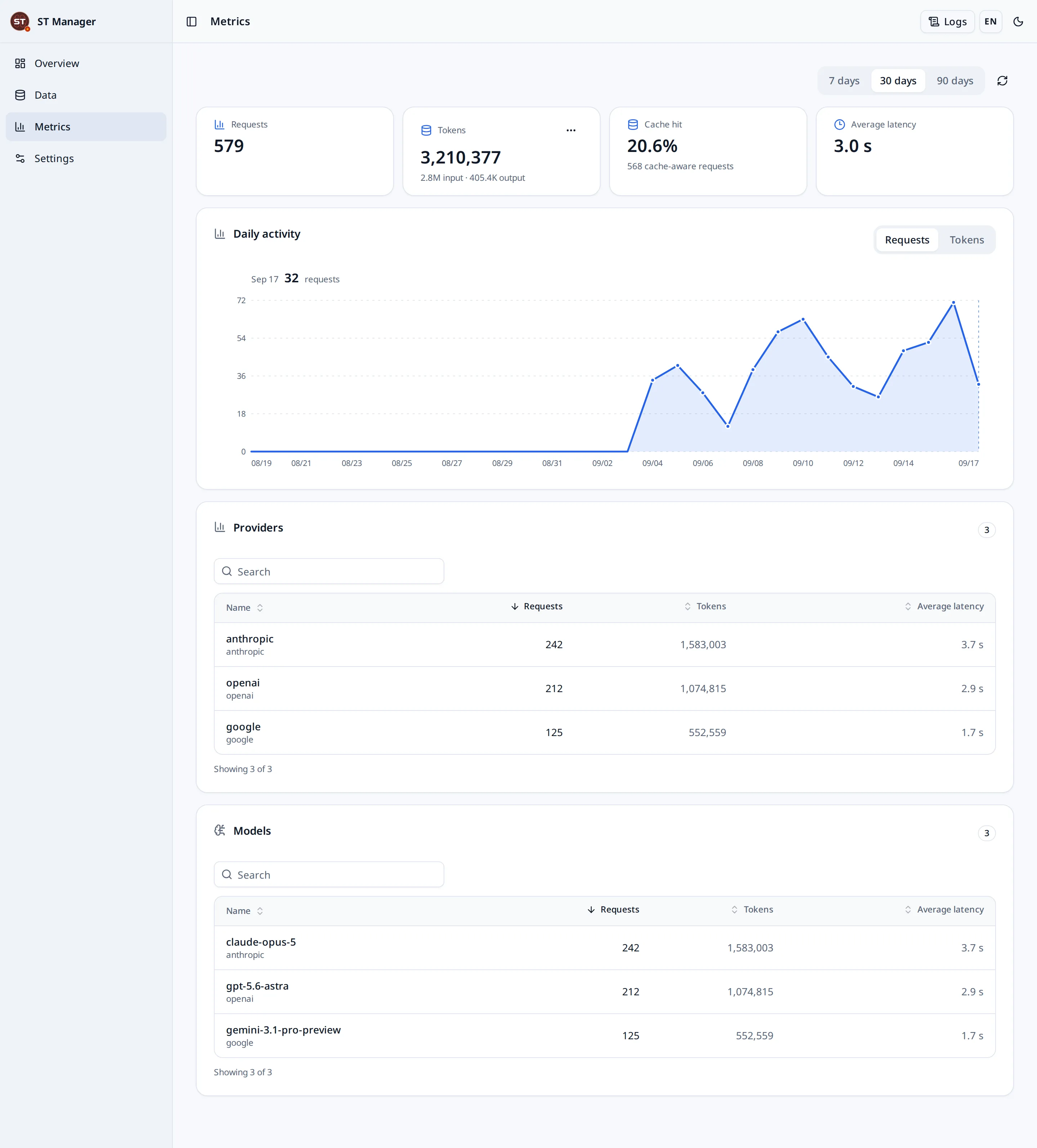
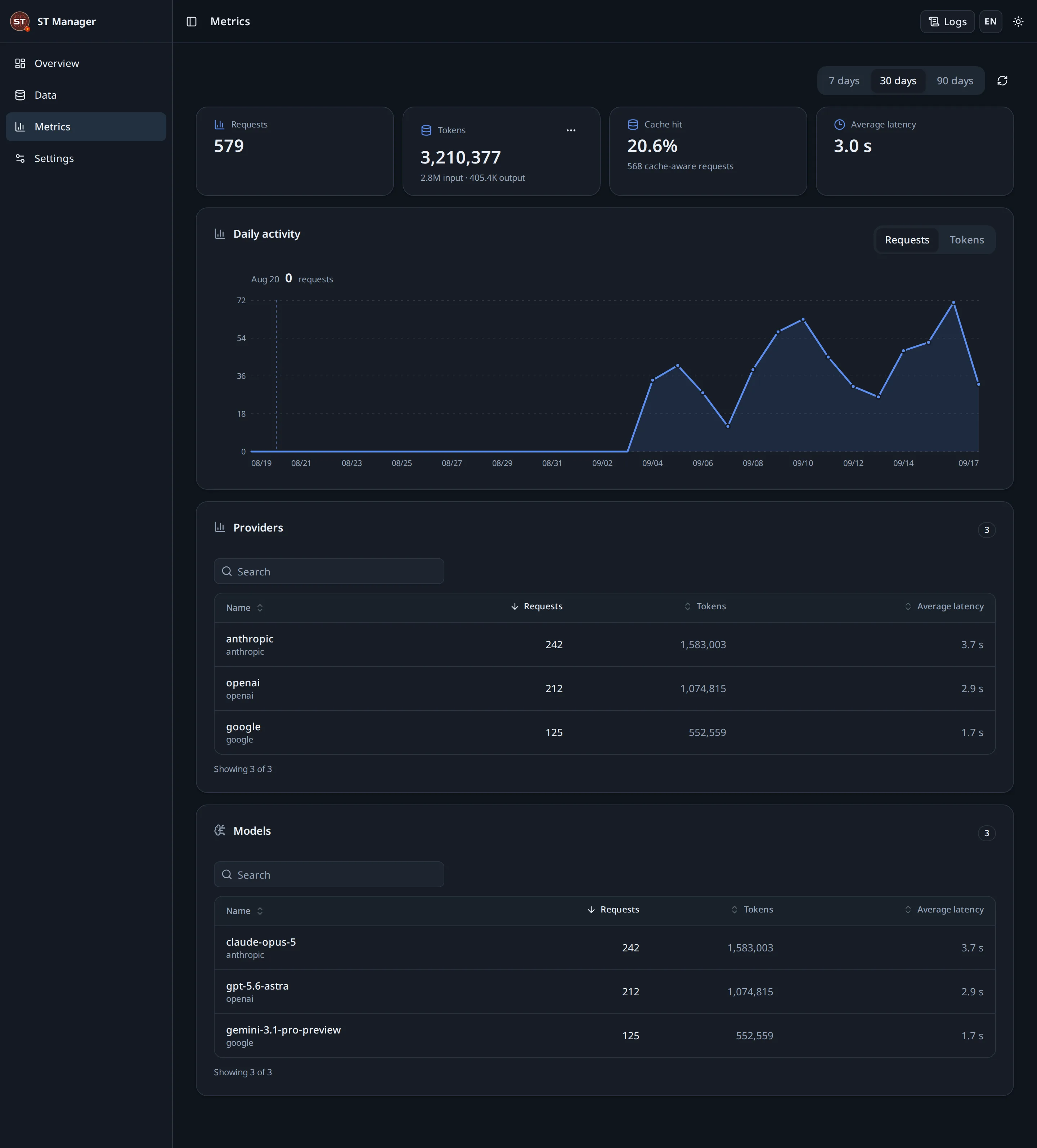
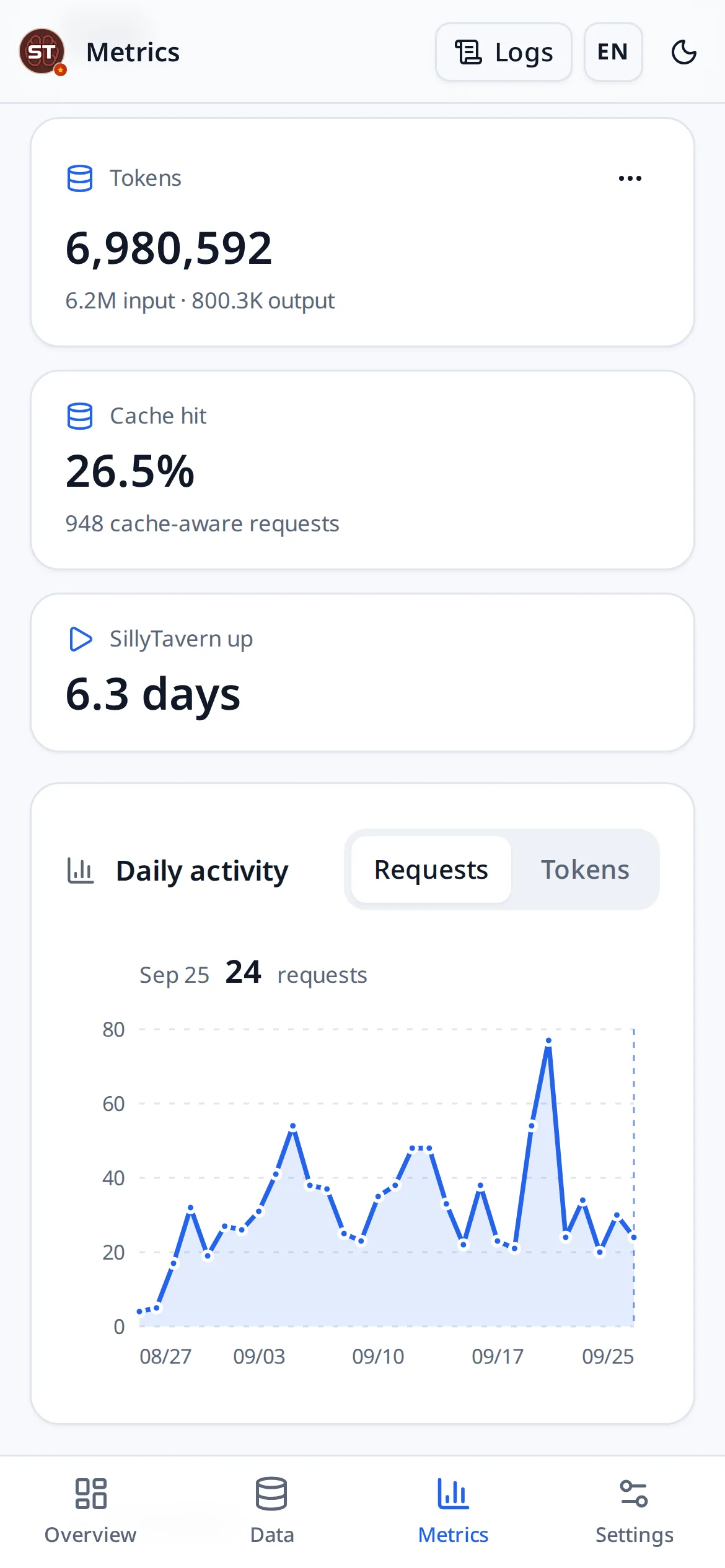
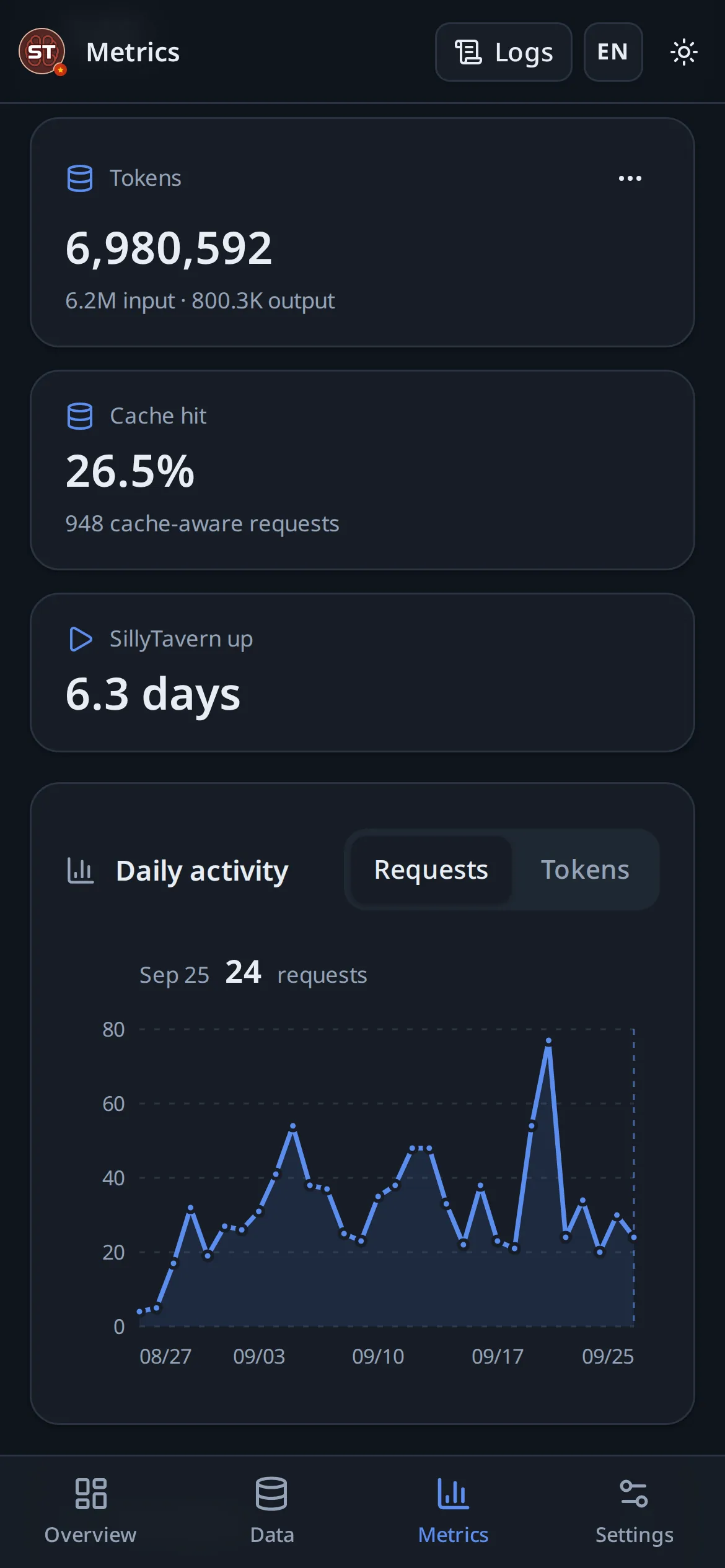
These figures never leave the machine. They are read from a local file; what the project receives is the far smaller summary described in the Privacy Notice.
Settings
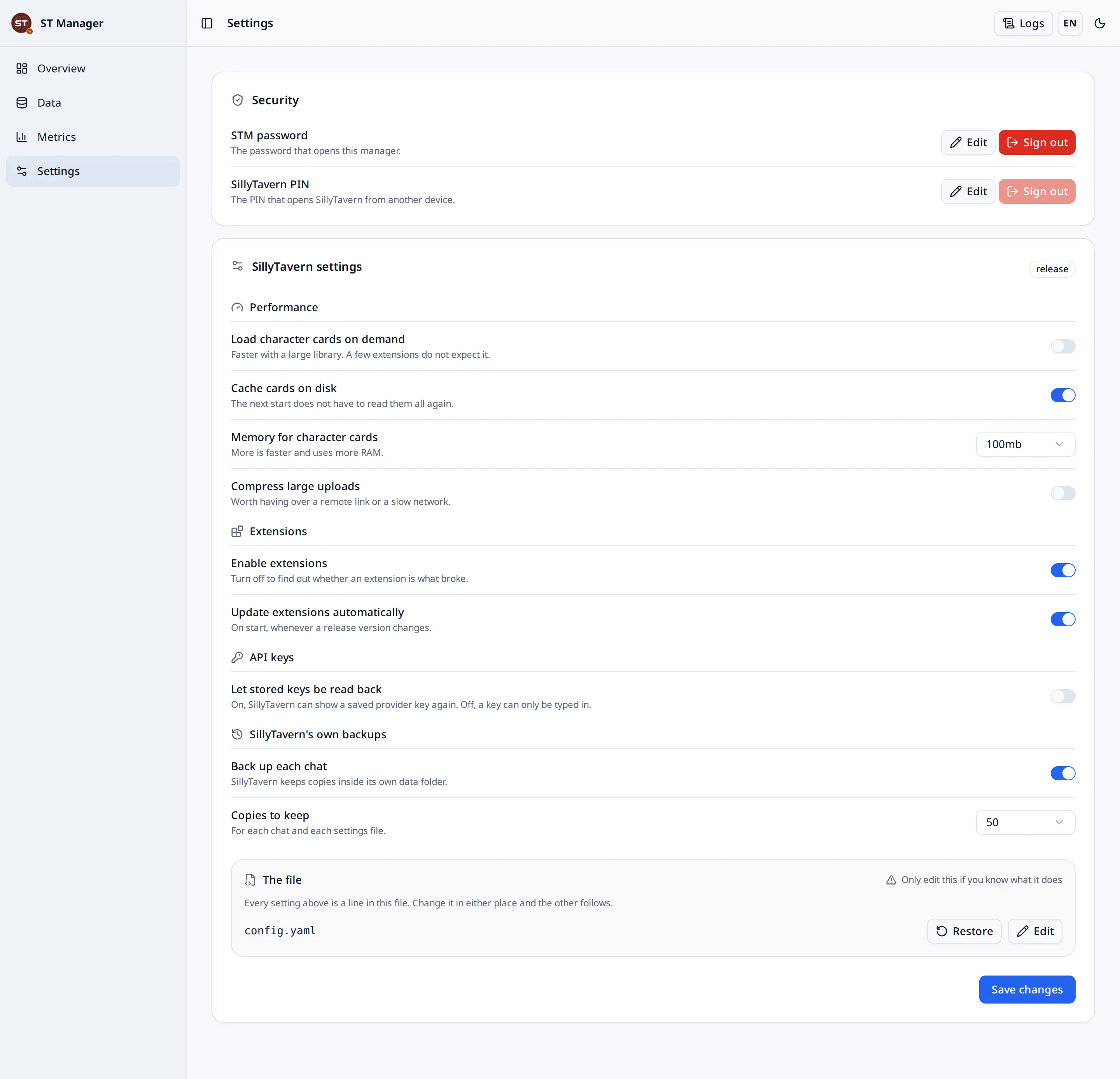
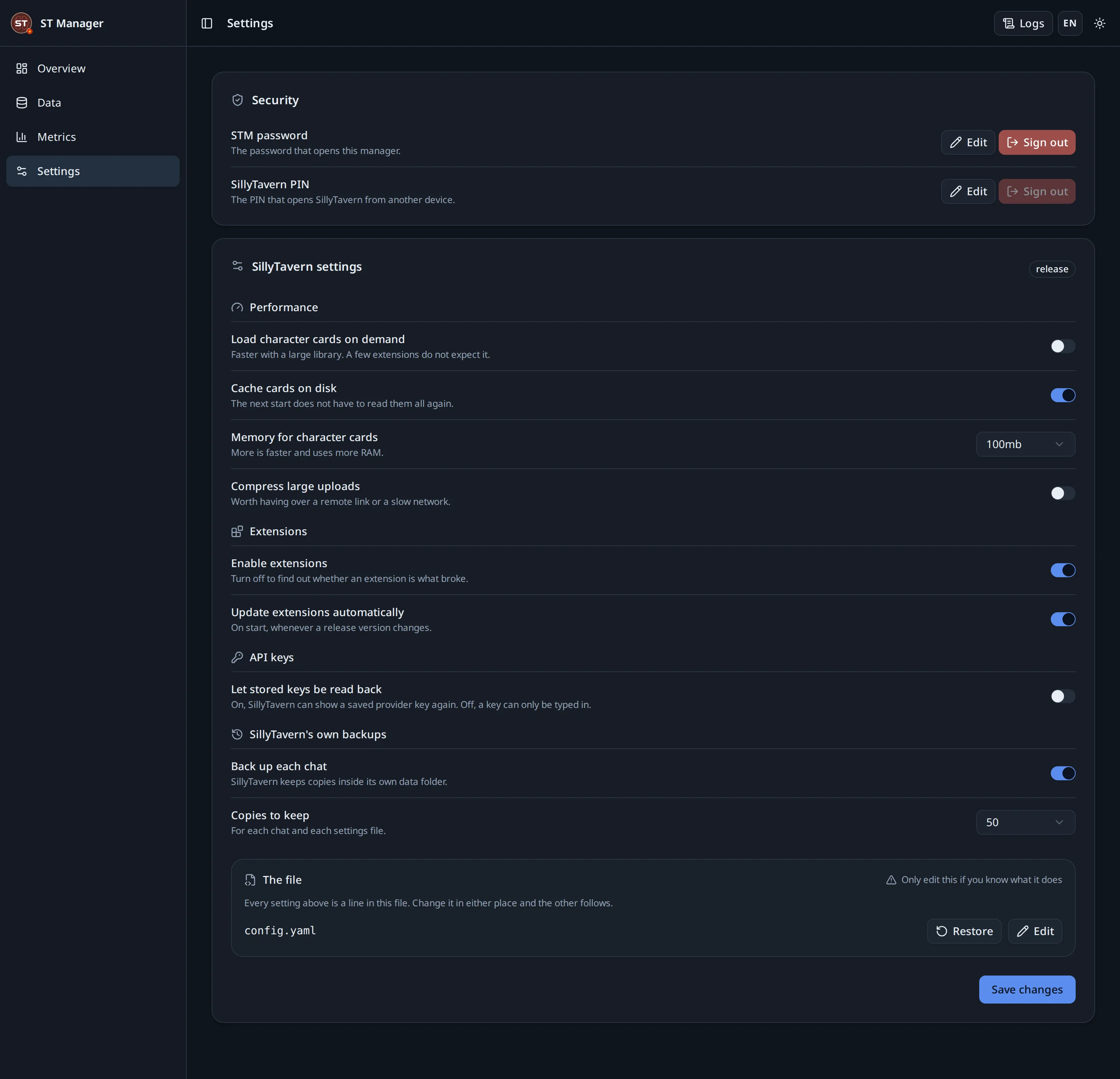
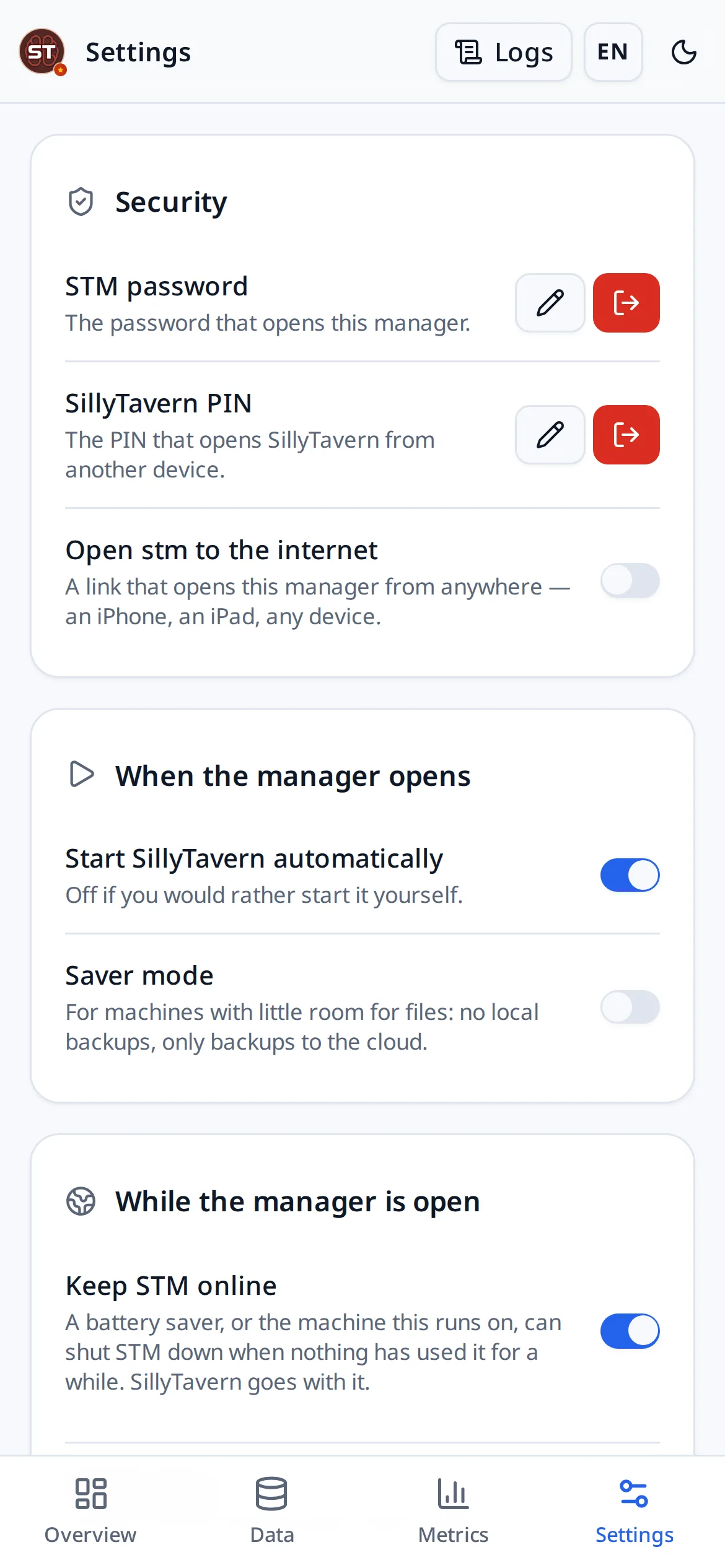
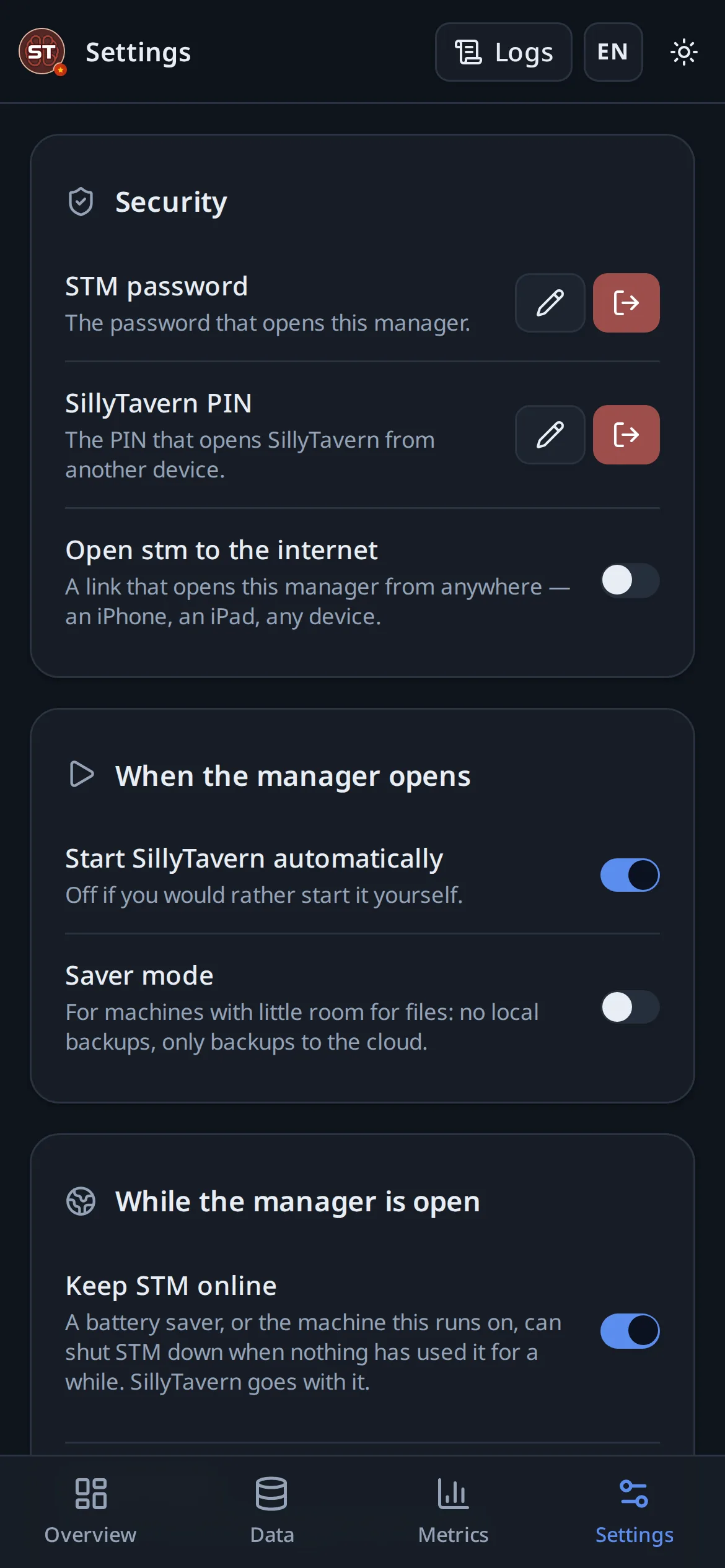
The Settings page edits SillyTavern’s own config.yaml through switches, and can also open the file directly for anything the switches do not cover. Each change saves itself: flip a few switches and they are written together a moment later, and SillyTavern restarts once to apply them.
| Setting | What it changes |
|---|---|
| Load character cards on demand | A large character list loads on demand rather than all at once. Turned on by itself, once, for a profile with a great many characters |
| Proxy for requests | Sends SillyTavern’s requests to AI services through your proxy (SillyTavern 1.12.6 or newer). Paste it as you have it: ip:port, ip:port:user:pass, user:pass@ip:port or a whole link; http, https, socks4 and socks5 work |
| Disk cache and memory cache | How much SillyTavern keeps ready; the memory figure is a ceiling, not a reservation |
| Request compression | Smaller responses over a tunnel or a slow link |
| Extensions and auto-update | Whether extensions load, and whether they update themselves |
| Allow key exposure | Whether SillyTavern will show stored API keys in its own interface. Off unless you need it |
| Chat backups | SillyTavern’s own per-chat backups, and how many to keep |
Editing the file by hand is a different act from flipping a switch. An invalid file stops SillyTavern from starting; the panel checks the YAML parses before it writes, but it cannot know whether a value makes sense.
Above SillyTavern’s settings are the manager’s own: the STM password and the SillyTavern PIN, the console’s own link to the internet, Start SillyTavern automatically, Saver mode, the ports, and Keep STM online. That last one has the manager reach its own address every 15 minutes (or 5, 10, 30 or 60), so a battery saver, or a host that stops idle programs, does not put it to sleep and SillyTavern with it. It holds the address in STM_PUBLIC_ORIGIN, otherwise the one your browser last reached the console at, otherwise 127.0.0.1; never the tunnel or the Worker, so it costs nothing from the Cloudflare allowance.
Updating
| Platform | How to update the manager |
|---|---|
| Windows | Update directly from the banner in the manager, or download the new installer (-setup.exe) and run it over the existing installation. |
| Android app | Download the new APK and install it over the old one. |
| Termux | Stop it with Ctrl+C, then run the update commands: cd stm, git pull, npm ci, npm start. |
| macOS, Linux | Stop the process, then git pull --ff-only, npm ci, and start the launcher again. |
| Docker | Rebuild the image and start a new container against the same volume. |
| npm | npm install --global sillytavern-manager@latest, or just run npx sillytavern-manager again. |
git pull --ff-only
npm ci
SillyTavern itself updates from the panel: pick a newer version and press Install. Your data is copied to safety before the version is switched, and the manager tells you when a release newer than the installed one exists.
The data directory is never inside the application directory, on any platform. Replacing the application leaves profiles, backups, logs, metrics and settings exactly where they were.
Environment variables
Everything can be set in the panel. These are for unattended installs and hosted platforms; they are read at start from the process environment or a .env file, and anything set here is shown in the panel and cannot be changed there.
| Variable | What it does |
|---|---|
STM_ADMIN_PASSWORD |
Creates the administrator password at the first start, so a headless install needs no browser |
STM_HOST |
What the manager binds to. Defaults to loopback; set 0.0.0.0 only behind other access control |
STM_DATA_DIR |
Where profiles, backups, logs and metrics are kept, instead of the platform default |
STM_PORT |
The console’s port, instead of 7860. Unset, a port something else holds is stepped over, and a host’s PORT is used when it announces one |
STM_ACCESS_PORT |
The access gateway’s port, instead of 8001 |
STM_SAVER |
1 or 0 settles saver mode for good; the switch in the panel then cannot change it |
STM_STORAGE_IN_MEMORY |
1 or 0 says whether files written here take the machine’s memory. Detected on its own from the mount table and the Knative K_SERVICE variable |
STM_PUBLIC_ORIGIN |
The address the console is reached at from outside, behind a proxy that rewrites Host; also the address Keep STM online holds |
STM_TUNNEL_PROTOCOL |
http2 skips cloudflared’s QUIC attempt on a network that does not let UDP out |
STM_OPEN_BROWSER |
0 stops the manager opening a browser at start |
STM_LOCAL_BACKUPS |
How many automatic archives to keep (one by default) |
STM_CLOUDFLARED_PATH |
A cloudflared binary to use instead of the one the manager would find |
STM_R2_ENDPOINT · STM_R2_BUCKET |
R2 or S3 endpoint and bucket, for keys supplied rather than signed in |
STM_R2_ACCESS_KEY_ID · STM_R2_SECRET_ACCESS_KEY |
The key pair. With all four set, R2 backups start switched on |
STM_CLOUDFLARE_OAUTH_CLIENT_ID |
An OAuth client registered in your own Cloudflare account; empty turns signing in off |
When something goes wrong
The live log is the first place to look, and usually the last. It carries the manager, SillyTavern, the installer, backups and the tunnel; the reason is nearly always written there in the program’s own words.
| What you see | What it usually is |
|---|---|
| The panel does not open at all | Something else holds port 7860, or the manager stopped. Check the console window, then the port. |
Install fails during npm ci |
No internet, a proxy in the way, or a full disk. The log carries npm’s own error. |
| Ready never arrives | SillyTavern started but did not answer on 8002. Read the SillyTavern lines in the log; a bad config.yaml is the usual cause. |
| The tunnel will not start | cloudflared is missing or Cloudflare is unreachable. Local access keeps working regardless. |
| Another device cannot connect | The gateway is off, no passcode is set, or the two devices are not on the same network. |
| A passcode stopped working | Five wrong tries lock the gateway. Wait, or change the passcode from the panel. |
| SillyTavern will not start after an edit | Restore defaults on the Settings page, or fix the YAML in the editor there. |
# Linux, macOS and Termux
ss -ltnp | grep -E ':(7860|8002|8001)' || lsof -i :7860Get-NetTCPConnection -LocalPort 7860 -State Listen | Select-Object OwningProcessIf none of that helps, open an issue at github.com/locmaymo/stm/issues with the platform, the version from the About panel in Settings, and the relevant log lines. Do not paste API keys or tunnel addresses.
Privacy, briefly
There is no account with the project and no copy of your data held by it. Chats, characters, prompts, settings, backups and API keys stay on machines you control, and in your own Google Drive or Cloudflare account if you connect one.
The manager sends one thing of its own accord: a small allowlisted usage summary. It holds the platform, the version, and per request the provider, model, endpoint hostname, token counts, status and duration. Never prompts, chats, responses, keys, file names, paths, IP addresses or query strings.
The full list is in the Privacy Notice. The Terms of Use and the Disclaimer say what the project does and does not take responsibility for.
The source is at github.com/locmaymo/stm, under the AGPL-3.0. You can read every line of it, including the part that decides what is sent.